Skip to content

TO:
All JSD staff who use Qmlativ Finance

FROM:
John Larsen, Business Administrator
Dan Ellis, Director of Accounting
Natalie Grange, Accounting Administrator


The Accounting team has created instructions to learn how to complete journal entries, move money requests, entering E-checks, the availability and use of financial reports, and data conversion information. Use the quick links below to go directly to a section of interest. Please share this post with anyone you feel would benefit.


Journal Entries

Journal entries to the same fund are operational and should be entered as usual.

Skyward Finance currently does not have the Due to/Due from offsets feature functioning for journal entries.  The Due to/Due from offset is required when doing journal entries across funds.  In order for Accounting to fix your JEs so they will process, please select your “Pay Other Loc” journal entry group.  The correct journal entry group must be selected when you start your JE.  It cannot be adjusted after the fact.  For now, follow the instructions below to get your JE’s submitted to accounting who will fix the due to/from offset.

  1. Click the Add a Journal Entry
  2. Add attachments
  3. Select the “Pay Others Loc” Journal Entry Group for your location.
    Add Journal Entry Example
  4. In the Journal Details screen (quick entry/journal entry detail) do the following for each scenario:
    To pay another school- Please only include this single transaction in the journal entry.
    Journal Entry - To pay another school
    To pay Nutrition- copy the same accounts used for your debit and credit and reverse the debit and credit amounts.  Include the phrase “due to/due from” in the short descriptions and Accounting will fix your entry.
    Journal Entry - To pay Nutrition
    To pay transportation - copy the same accounts used for your debit and credit and reverse the debit and credit amounts.  Include the phrase “due to/due from” in the short descriptions and Accounting will fix your entry.
    Journal Entry - To pay Transportation

If your journal entry includes more than two funds, it will be easier to send them to Accounting to be entered. Please contact Accounting for instructions.

The “Pay Others Loc” Journal Entry Group should only be used in the situations above.  For corrections within your own location, use the Journal Entry group with your location number.


Move Money

The move money process task can be found in the “My Tasks and Processes” menu.  Under my processes on the left side, select “Start a Process”.  Click the “Start” play button next to the Payroll Move Money to a different account task.
Move Money Task

As before, please enter the name of the employee for which payroll existing payroll charges need to be moved.  Then click on the “form” hyperlink called “Payroll Move Money to Different Account”.  A box will pop up alerting you that you will be opening a new browser tab.  Click ok.
Payroll Move Money to Different Account

Another tab will open where you can enter check dates of pay to move.  You must enter the dates you wish moved.  Move moneys can only move payroll that has already been paid.

Enter either an amount, or a % to move for each account.

Enter the full account number of the incorrect account and the correct account.  You can enter more than one account with a % split.

Please provide an explanation of the reason for the move money.

Please attach back up documentation at the bottom, under upload files.

At the top you can save and exit, which enables you to come back to this task at a later date, or submit form.
Moving money - submit form


Reports

The following reports in the “accounts” menu have been created and tested by Accounting.  With the exception of the encumbrance issue below, they are accurate and represent correct program accounting information.

JSD-Budget Report by Object - This report is a summary of revenues and expenditures. The input screens allow you to select the month, specific program, functions, and/or objects.  The bottom of the report has a grand total of revenues, expenditures, and net activity.

JSD-Revenue and Expense Detail - This report lists the detail transactions by account for selected programs, functions, and/or objects.

Fund 21 Summary Reports are being tested now and will be available soon.


Differences in Systems

Remaining Balance Column
The remaining balance column on the account list screen and on all reports is calculated by subtracting activity and encumbrances from the revised budget column.

revised budget – activity – encumbrance = remaining balance

If an account has a zero budget the remaining balance column will always be negative.  JSD does not budget every line item in most school allocations, Fund 21 or Fund 75 accounts.   Thus, the remaining balance column should not be used to determine the “balance” left in an account.  The subtotal amount on the account list screen will also net all numbers together, rather than calculating an actual remaining balance.

Presently, the “JSD Budget Report by Object” report (located in account/reports) can be run for specific accounts or groups of accounts and includes a calculated feature on the last page showing total revenues, total expenses, and NET balances.  This balance can be relied upon to reflect the overall picture of an account (with the exception of the encumbrances section below).

Revenues are credit balances
This system displays revenues with their natural accounting credit balance on the account list screens.  Credits to a revenue account increase the balance of a revenue.  Credits are good, they mean you collected revenue.  This is a difference from our old system.  Please don’t be alarmed when seeing credit balances in revenue accounts.

The “JSD Budget Report by Object” report masks the sign of revenues and displays them as a positive balance, like the previous system.  This report includes a calculated feature on the last page showing total revenues, total expenses, and NET balances.  This balance can be relied upon to reflect the overall picture of an account (with the exception of the encumbrances section below).

Both representations are correct.


Known Conversion Issues

Encumbrances
Encumbrances related to PO’s did not convert into the new system 100% correctly.  During conversion PO’s that were not fully closed or had line items that were not fully liquidated in the old system came into the new system as open PO’s.  Some PO’s did not get closed fully in the old system before conversion.  As a result, encumbrances are in varying states of accuracy.   IT and our vendor are looking into this issue and working on suggested resolutions.

Until this is resolved be advised that budgets are accurate and activity (expenditures) converted accurately.   As you are reviewing the status of your accounts, please carefully examine encumbrances to make sure they are reflecting correctly.  You can review the SMS system(old system) to review specific details.

Revenue and Expenditure Detail Reports
A JSD Revenue and Expenditure Detail report has been created, but not made available district wide. We have not made this report available because transactions created by Echecks are not pulling into these detail reports correctly.  The transactions exist and were converted into the new system, but for an unknown reason these transactions won’t pull into the detail reports.  Reports run at the present are missing data and do not agree to summary reports.

Balances on the “JSD Budget Report by Object” are accurate and do include these transactions in the totals.  We are awaiting the vendor to resolve this issue.  Account details can still be obtained in the old system for transactions through April.

Skyward is working on this as of 05/13/2026 and are hopeful it will be resolved before the end of the month.


E CHECKS

Batch name
The E-Check template has a batch name that is populated with abbreviations “ECHK” or “ECHK2”.  Please do not edit this field.  Leave this batch name as is, you do not need to change it.

Description to print on check
Adding an E-Check – Please make sure to include any information to help the vendor identify payments i.e.( account number, customer number, etc.) in the E-Check in the description code on the “Add Invoice” page (highlighted in red below). This description field prints on the memo line of the check. Please do not add your description to the “Save & Add Details” description box. This box does not print on the check.

Add check description after school name in red below:
Echecks - Add Invoice

Add any other detail that will helpful to you the invoice details description box below (in yellow).  Please note that this field will not be printed on the check or be seen by the vendor.
Invoice Detail Details

If you have any questions, contact the Accounting team at 801-567-8266.


TO:
All Administrators
All Administrative Assistants

FROM:
April Gaydosh, Administrator of Human Resources
Rebecca Eastman, HR Generalist


As a reminder regarding our Employee-Funded Sick Bank Policy:
1. Employees are automatically enrolled in the sick bank each year through the annual donation of one (1) annual leave day to the sick bank.

More information regarding the Employee-Funded Sick Bank can be found in policies, DP326NEG -Sick Leave-Educational Support Professionals and DP 324NEG-Sick Leave-Licensed.

For those who wish to opt out of participation in the Employee-Funded Sick Bank, keep an eye out for instructions starting in the July issues of JEM and JAM.

*First Year Educational Support Professionals and hourly employees are not eligible
for sick bank, therefore, a sick bank day will not be deducted (if applicable).

DATE:
May 14, 2026

TO:
Principals
Assistant Principals

FROM:
Michael Anderson, Associate Superintendent
Travis Hamblin, Director of Student Services

SUBJECT:
Free Safety & Behavior Conference


The S4K Safety & Behavior Conference is free for any administrator, teacher, or other educator that signs up. This conference is three (3) days of hands-on, real-world crisis response strategies for creating positive cultures through safety and support. 

Topics include crisis prevention, de-escalation, mental health awareness, PBIS, MTSS, strategies to reduce bullying, implementing protective factors and strategies to build a safer, more connect school community. 

Use this link to sign up if you are interested. The attached flyer provides more information about the conference, registration, and registration for larger school groups. 

TO:
Administrators, Principals, School Admin Assistants

FROM:
Katie Bastian, Nutrition Services Director


Jordan School District Summer Meals Program will be offered at 4 school sites this summer. Meals are free for children 18 years of age and younger. Serving days and times are included on the attached flyers. Please share this information with your school community in the next couple of weeks before school is out.

TO:
All administrators and Admin Assistants

FROM:
Dan Ellis, Director of Accounting, Budgets, and Audits


There was a problem with the posting of insurance to program accounts in the month of April. Therefore, reports sent in April are incorrect and the issue will be corrected as soon as possible once Qmlativ is up and running.

TO:
Administrators
Counselors

FROM:
Michael Anderson, Associate Superintendent
Michelle Love-Day, Director of Language and Culture Services


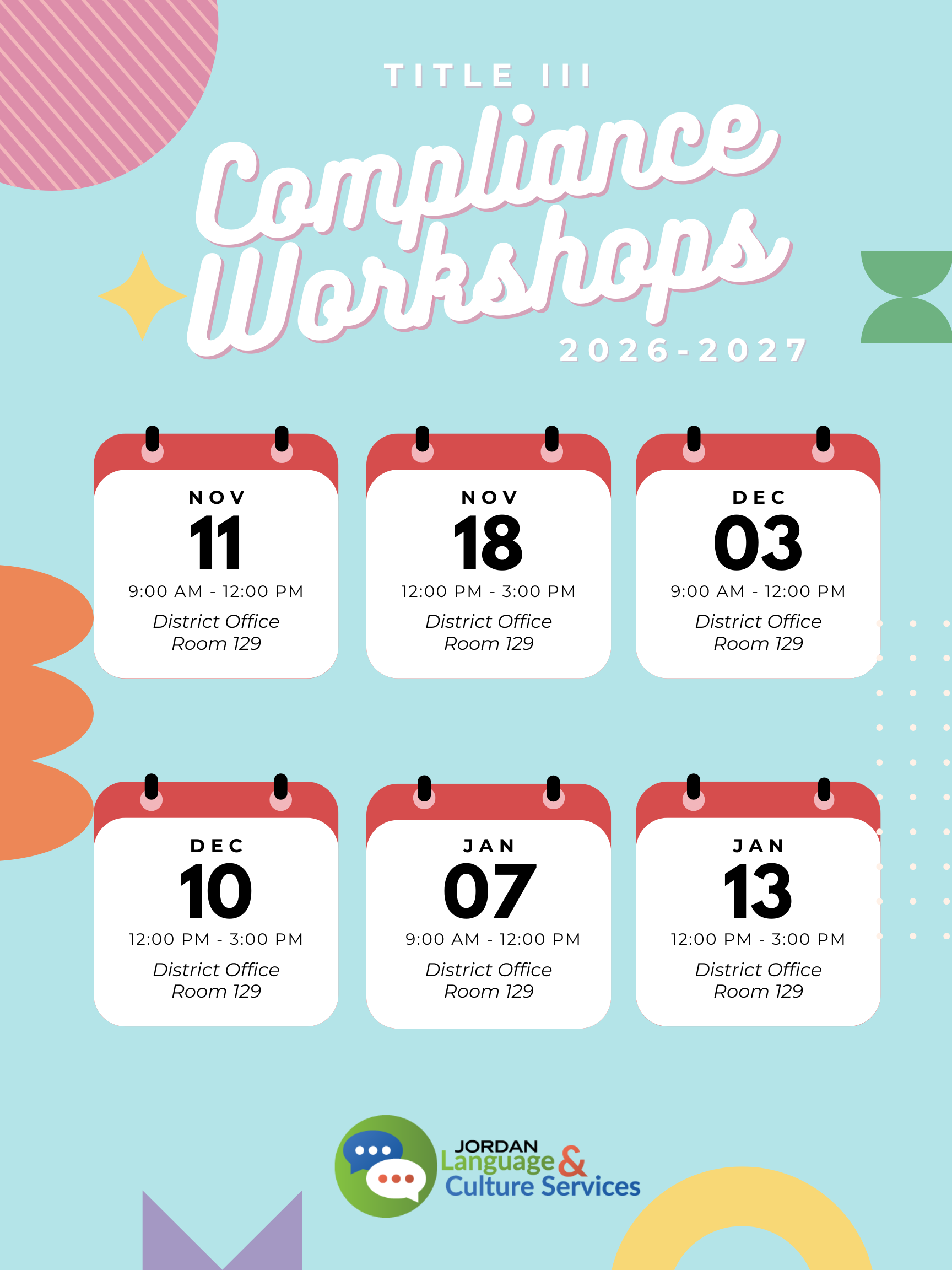
Join Language and Culture Services for a training session on Discriminatory Language. We will explore the impact of discriminatory language in K-12 settings and provide recommendations to administrators and counselors on how to address discriminatory language. Several resources will be shared with participants, including a facilitated discussion guide to use with students.

You can select a morning session or an afternoon session.

TO:
All Employees

FROM:
Sarah Palmer, Director of Payroll


ANNUAL/PERSONAL LEAVE DURING THE LAST FIVE DAYS OF SCHOOL
May 29th – June 4th
All Licensed and ESP Employees

Per District policy, annual or personal leave days may not be used during the last five days of school, unless the leave reason is listed in policy as an exception. If any of the exceptions do apply, you must provide both the leave reason and the policy exception in the time off description. If these exceptions are not applicable, your annual/personal leave day will be changed to a no-pay day as per policy.

DP335NEG-Annual Leave-Licensed
DP335B-Annual Leave-Education Support Professionals

7. Annual leave shall not be taken during the last five (5) days that students are in school except under the following conditions:

a. To attend the wedding of a near relative including child, father, mother, brother, sister, grandchild, grandparents or same to one’s spouse or any other person who is a member of the same household as the employee.
b. To attend to personal or business matters which require the employee’s attendance and scheduling is beyond the employee’s control.
c. First year employees who notify their supervisor in writing that they are ill.


TEACHER CHECKOUT DAY – JUNE 5
All Licensed Employees

As per District policy, DP335NEG-Annual Leave-Licensed, licensed employees may not take annual/personal leave on the teacher checkout day on June 5th. However, through correlation with the principal, they may arrange to exchange this day for another non-contract day.


TIME TRACKING AND TIME OFF
Last Day of School - June 4

Please make sure all of your Time Tracking and time off is submitted and approved before leaving for summer break.

Last contract day for the 2025-26 school year
June 4th – last day of school (180 days)
June 5th – teacher checkout (184 and 187 days)
June 12th – last day for elementary administrative assistants (206 days)
June 19th – last day for extended teachers/specialists/coordinators (207 days)

Date:
April 30, 2026

To: 
All Principals
All Budget Directors

From:
John Larsen, Business Administrator
Daniel Ellis, Director of Accounting, Budgets & Audits
April Gaydosh, Administrator, Human Resources
Steffany Ellsworth, Support Services Manager, Information Systems
Bonnie Brennan, Director of Insurance Services
Sarah Palmer, Director of Payroll
Kurt Prusse, Director of Purchasing

Subject:
2025-26 Year-End Finance Processing Deadlines


Please observe the attached critical deadlines regarding the financial year-end processes for the 2025-26 school year. Please review these dates as they could have a major impact on your location’s ability to operate.

TO:
All Administrators
All Administrative Assistants

FROM:
April Gaydosh, Administrator of Human Resources
Rebecca Eastman, HR Generalist


The Jordan School District High School graduation dates and times will vary from school to school. Please see the attached 2025-26 High School Graduation Schedule.

Principals and Directors are encouraged to provide flexibility to parents or grandparents requesting the opportunity to attend the graduation ceremonies of family members.

Licensed employees are responsible for requesting a substitute through the Frontline Absence Management System, if applicable. In the blue “Notes to Administrator” box, the employee should add “graduation” along with his/her relationship to the graduate.

For additional assistance, please contact suboffice@jordandistrict.org.

TO:
All Administrators
All Administrative Assistants

FROM:
April Gaydosh, Administrator of Human Resources


The following information pertains to Intern Educators, Intern Psychologists, or Intern Counselors graduating in 2026 that are assigned to your location.

Please excuse full time intern educators (BYU, U of U and UVU), intern school psychologists, and intern counselors to attend their own in-person Commencement OR Convocation ceremonies. They are eligible to enter their absence in Skyward under the “Other” Leave Code and the Absence Reason of, “District Excused”. Only one day can be coded as District Excused, and
should reflect their commencement or convocation date. Please confirm this date prior to approving in skyward. The following information should be included in the description in Skyward ‘0050- Intern In-Person Graduation UNIVERSITY NAME'.

The intern is responsible for requesting a substitute, if needed, through the Frontline Absence Management System. The absence reason entered should be ‘District Excused’ and in the blue notes to administrator box, the intern should add the following information; ‘District Excused 0050- Intern in- person graduation UNIVERSITY NAME’.

If you have questions as to whether your Intern has entered the time off in Skyward or Frontline appropriately, please contact suboffice@jordandistrict.org.

DATE:
April 28, 2026

TO:
All Administrators
All Administrative Assistants

FROM:
April Gaydosh, Administrator of Human Resources

SUBJECT:
Administrative Assignments


New Assignments effective July 2026:

Elementary School

  • Tiffany Smith Riverton Elementary
    Tiffany Smith, previously transferred as Principal to Heartland Elementary, transferred as Principal to Riverton Elementary replacing Shauna Worthington who has resigned.
  • Toni Lasater Heartland Elementary
    Toni Lasater, Assistant Principal at Oak Leaf Elementary, appointed Principal at Heartland Elementary.
  • Amber Allen Oak Leaf Elementary
    Amber Allen, Assistant Principal at Butterfield Canyon Elementary, transferred as Assistant Principal to Oak Leaf Elementary.

DATE: 
April 30, 2026

TO:  
All Administrators

FROM: 
Michael Anderson, Associate Superintendent
Travis Hamblin, Director, Student Services
Caleb Olson, Enrollment Consultant, Student Services

SUBJECT:
Change to 2026-27 School Year Calendar


To comply with recent legislative changes, the Board of Education has approved the following updates to the 2026-27 academic calendar.

  • Friday, February 5, 2027 – Health & Wellness Day: This day is no longer a student instruction/virtual day and has been designated a Teacher Professional Day.
  • Friday, April 16, 2027 – This day was previously designated a Teacher Professional Development Day and will now by a regular Friday schedule for all students.

Updated calendars have been posted on http://planning.jordandistrict.org/calendars/.


DATE:
April 15, 2026

TO:
All Administrators
All Financial Administrative Assistants

FROM:
Dr. Anthony Godfrey, Superintendent of Schools
John Larsen, Business Administrator

SUBJECT:
Staff Appreciation Funds (formerly known as Staff Discretionary Funds)


As a reminder, Staff Appreciation Funds have been allocated for all staff members (both licensed and ESP) for snacks, meals, etc. Please see the attached memo for an update clarifying unspent funds in that budget.

DATE:
April 30, 2026

TO:
All District Administrators

FROM:
Michael Anderson, Associate Superintendent
Travis Hamblin, Director, Student Services
Caleb Olson, Enrollment Consultant, Student Services

SUBJECT:
“Anyone with the Link” Files in Google Drive (April 2026)


Throughout the District’s Google Drive system, there are numerous files that are set to be visible or editable by “anyone with the link.” There are a number of use cases where having publicly accessible files in Drive can be a benefit; however, these files often contain student or employee data that should not be publicly shared. Making this data publicly accessible can result in a data incident or breach.

Changes may be implemented in the future to reduce the possible risks of files shared to “anyone with the link.” At this time, however, all employees are requested to review their own Drive for files that may be shared incorrectly and to either delete the files or make the necessary adjustments to sharing. 

The steps to accomplish this review are below, as well as the text of the directions which will be shared with employees in JEM. Principals are asked to remind faculty of this JEM item and/or to make time available for digital coaches to demonstrate how to search for files. No monitoring or reporting of completion is requested or required at this time.

Steps to Review Sharing:

  1. Sign in to Google Drive using your jordandistrict.org credentials.
  2. Near the top of the page, look for a button/menu labeled “People”.
  3. Click on this button and select “Anyone with the link.” This will filter files to only those that are publicly shared.
  4. Review the files. Old files that are no longer needed can be deleted. Files that should not be publicly shared should have their settings changed by right-clicking the file and selecting the “Share” item. 

These steps will show publicly shared files in a personal Drive only. Many files, particularly those with student data, are in Shared Drives. These steps will need to be repeated inside a Shared Drive to identify files that need review.

Lock Your Drive!

You wouldn’t leave your front door open when no one was home, or leave a car unlocked in a full parking lot, so why leave your files open and accessible? Across the District, a significant number of files in Google Drive have a sharing status where “anyone with the link” can view or edit. While this might be appropriate for certain situations, any file with student or employee data should only be shared with Jordandistrict.org - or better yet, only with those who have a legitimate need to access the file.

Checking your files is easy! Just do the following:

  1. Sign in to your jordandistrict.org Google Drive using the “waffle” or by opening http://drive.google.com.
  2. Under the “People” menu at the top of the page, select “Anyone with the link” (your menu may be slightly different - that’s okay!).
  3. That’s it! You should see a list of all the files in your personal Drive that are set to be publicly accessible. If you manage or are a member of a Shared Drive, you will need to open the Shared Drive and follow these same steps.


Once you have identified the files that are shared publicly, you should go through and ensure that any files containing student or employee data are no longer shared publicly. You can do this by right-clicking on a file and selecting the “Share” menu.

BONUS TIP! You may have files that are set to be publicly shared that are located all throughout your Drive. If these files need to be kept publicly accessible, consider making a folder in your Drive called “Public Files” and moving the files here. To add another layer of monitoring, you can add an indicator to the file name, such as “[PUBLIC]”, to make sure you remember these files are public and should not contain student or employee data.


TO:
Principals
Department Heads

FROM:
Mike Haynes, Director of Jordan Education Foundation


Only one week remains to nominate an ESP for the Outstanding ESP Awards. Don't miss out on the opportunity to let support staff know just how much they mean to the Jordan School District community! Nominate Now!

Top nominees will receive a $1,000 award, a commemorative plaque, and be recognized at the JSD Board of Education meeting in May.

Nomination Criteria & Guidelines
Please use the following criteria as a guide for your submission:

  • Who is eligible? All Education Support Professional employees within JSD, including part-time staff, are eligible.
  • Who is not eligible? Employees who have previously won this award are not eligible.
    👉 View the Past Recipients List
  • Can I nominate my entire staff? Sorry, only one nomination per department or school will be accepted each year.
  • Who determines which employee to nominate? All nominations must be approved by the employee’s Principal or Department Head prior to submission.
  • How are the top nominees selected? A volunteer committee from the JEF Board of Directors will review the nominations and select ten individuals as Outstanding Education Support Professional Employees of the Year.

Know who you want to nominate? 👉 Submit Your Nomination Here

DATE:
April 23, 2026

TO:
All Administrators

FROM:
David Bowman, Systems & Security Manager, Information Systems
Steffany Ellsworth, Support Services Manager - Information Systems

SUBJECT:
Apple Devices with Outdated Operating Systems


As part of our ongoing commitment to network and data security for students and staff, the Information Systems department will be implementing a necessary security measure on Apple devices that have an operating system which cannot receive the latest software and security updates. These devices will be disabled as of April 30, 2026.  Many of you have already had conversations this school year with your building IT tech. For those who have not, please reach out to your IT tech as soon as possible to get a list of the devices that will be disabled at your school or department. 

The majority of the Apple devices that meet this criteria are 8+ years old. Disabling the device will render it unusable; however, data will not be wiped from these devices. If needed, your tech can work with the user to transfer data to a replacement device. 

To prevent disruptions like this in the future and to ensure your staff and students are working with secure, reliable technology, you are strongly advised to implement a regular device rotation. 

If you have any questions regarding this security measure or need assistance planning your device refresh cycle, please feel free to reach out to your IT tech.

TO:
Administrators

FROM:
Carolyn Gough, Administrator of Teaching and Learning
Chris Richards-Khong, Associate Administrator of Teaching and Learning


School-Based Associates Opportunity
The Jordan School District is excited to announce the renewal of the School-Based Associates (SBA) Mini-Grant Program for the 2026–2027 school year.

This program offers past participants of the BYU/Public School Partnership (CITES) the opportunity to bring powerful, research-based learning experiences back to their colleagues. SBA serves as a catalyst for energizing staff, deepening the understanding of public education’s purpose, and fostering collaboration on the foundational principles of teaching.

These mini-grants are funded through a one-year award from the USBE and are available on a limited basis. A key feature of the program is a compensation stipend for teacher leaders who serve as site facilitators. Complete the SBA Grant Interest Form and call Chris Richards-Khong with any questions at 801-567-8158.

JSD Site Based Associate Flier Link

SBA GRANT INTEREST FORM

JSD School-based Associates Program Grant Application Guide (26-27)

TO:
Administrators
Counselors

FROM:
Michelle Love-Day, Director, Language and Culture Services


Join Language and Culture Services for a training session on Discriminatory Language. We will explore the impact of discriminatory language in K-12 settings and provide recommendations to administrators and counselors on how to address discriminatory language. Several resources will be shared with participants, including a facilitated discussion guide to use with students.

You can select a morning session or an afternoon session.

TO:
District Administrators
Principals
School Administrative Assistants

FROM:
Katie Bastian, Director of Nutrition Services


Please update your registration materials and anything online or sent to families that includes outdated meal price info.

Meal Prices for the Upcoming 2026 - 2027 School Year

-Elementary Breakfast: $1.30
-Elementary Lunch: $2.25
-Secondary Breakfast: $1.55
-Secondary Lunch: $2.55
-Adult Breakfast: $3.00
-Adult Lunch: $5.00
-Reduced Breakfast: $.0.30
-Reduced Lunch: $0.00 (Utah Legislature is covering the cost for reduced lunch under UT House Bill 100)

If you have questions, please contact our office at 801-567-8760