TO:
All JSD staff who use Qmlativ Finance
FROM:
John Larsen, Business Administrator
Dan Ellis, Director of Accounting
Natalie Grange, Accounting Administrator
The Accounting team has created instructions to learn how to complete journal entries, move money requests, entering E-checks, the availability and use of financial reports, and data conversion information. Use the quick links below to go directly to a section of interest. Please share this post with anyone you feel would benefit.
Journal Entries
Journal entries to the same fund are operational and should be entered as usual.
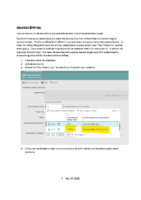
Skyward Finance currently does not have the Due to/Due from offsets feature functioning for journal entries. The Due to/Due from offset is required when doing journal entries across funds. In order for Accounting to fix your JEs so they will process, please select your “Pay Other Loc” journal entry group. The correct journal entry group must be selected when you start your JE. It cannot be adjusted after the fact. For now, follow the instructions below to get your JE’s submitted to accounting who will fix the due to/from offset.
- Click the Add a Journal Entry
- Add attachments
- Select the “Pay Others Loc” Journal Entry Group for your location.

- In the Journal Details screen (quick entry/journal entry detail) do the following for each scenario:
To pay another school- Please only include this single transaction in the journal entry.

To pay Nutrition- copy the same accounts used for your debit and credit and reverse the debit and credit amounts. Include the phrase “due to/due from” in the short descriptions and Accounting will fix your entry.

To pay transportation - copy the same accounts used for your debit and credit and reverse the debit and credit amounts. Include the phrase “due to/due from” in the short descriptions and Accounting will fix your entry.

If your journal entry includes more than two funds, it will be easier to send them to Accounting to be entered. Please contact Accounting for instructions.
The “Pay Others Loc” Journal Entry Group should only be used in the situations above. For corrections within your own location, use the Journal Entry group with your location number.
Move Money
The move money process task can be found in the “My Tasks and Processes” menu. Under my processes on the left side, select “Start a Process”. Click the “Start” play button next to the Payroll Move Money to a different account task.

As before, please enter the name of the employee for which payroll existing payroll charges need to be moved. Then click on the “form” hyperlink called “Payroll Move Money to Different Account”. A box will pop up alerting you that you will be opening a new browser tab. Click ok.

Another tab will open where you can enter check dates of pay to move. You must enter the dates you wish moved. Move moneys can only move payroll that has already been paid.
Enter either an amount, or a % to move for each account.
Enter the full account number of the incorrect account and the correct account. You can enter more than one account with a % split.
Please provide an explanation of the reason for the move money.
Please attach back up documentation at the bottom, under upload files.
At the top you can save and exit, which enables you to come back to this task at a later date, or submit form.

Reports
The following reports in the “accounts” menu have been created and tested by Accounting. With the exception of the encumbrance issue below, they are accurate and represent correct program accounting information.
JSD-Budget Report by Object - This report is a summary of revenues and expenditures. The input screens allow you to select the month, specific program, functions, and/or objects. The bottom of the report has a grand total of revenues, expenditures, and net activity.
JSD-Revenue and Expense Detail - This report lists the detail transactions by account for selected programs, functions, and/or objects.
Fund 21 Summary Reports are being tested now and will be available soon.
Differences in Systems
Remaining Balance Column
The remaining balance column on the account list screen and on all reports is calculated by subtracting activity and encumbrances from the revised budget column.
revised budget – activity – encumbrance = remaining balance
If an account has a zero budget the remaining balance column will always be negative. JSD does not budget every line item in most school allocations, Fund 21 or Fund 75 accounts. Thus, the remaining balance column should not be used to determine the “balance” left in an account. The subtotal amount on the account list screen will also net all numbers together, rather than calculating an actual remaining balance.
Presently, the “JSD Budget Report by Object” report (located in account/reports) can be run for specific accounts or groups of accounts and includes a calculated feature on the last page showing total revenues, total expenses, and NET balances. This balance can be relied upon to reflect the overall picture of an account (with the exception of the encumbrances section below).
Revenues are credit balances
This system displays revenues with their natural accounting credit balance on the account list screens. Credits to a revenue account increase the balance of a revenue. Credits are good, they mean you collected revenue. This is a difference from our old system. Please don’t be alarmed when seeing credit balances in revenue accounts.
The “JSD Budget Report by Object” report masks the sign of revenues and displays them as a positive balance, like the previous system. This report includes a calculated feature on the last page showing total revenues, total expenses, and NET balances. This balance can be relied upon to reflect the overall picture of an account (with the exception of the encumbrances section below).
Both representations are correct.
Known Conversion Issues
Encumbrances
Encumbrances related to PO’s did not convert into the new system 100% correctly. During conversion PO’s that were not fully closed or had line items that were not fully liquidated in the old system came into the new system as open PO’s. Some PO’s did not get closed fully in the old system before conversion. As a result, encumbrances are in varying states of accuracy. IT and our vendor are looking into this issue and working on suggested resolutions.
Until this is resolved be advised that budgets are accurate and activity (expenditures) converted accurately. As you are reviewing the status of your accounts, please carefully examine encumbrances to make sure they are reflecting correctly. You can review the SMS system(old system) to review specific details.
Revenue and Expenditure Detail Reports
A JSD Revenue and Expenditure Detail report has been created, but not made available district wide. We have not made this report available because transactions created by Echecks are not pulling into these detail reports correctly. The transactions exist and were converted into the new system, but for an unknown reason these transactions won’t pull into the detail reports. Reports run at the present are missing data and do not agree to summary reports.
Balances on the “JSD Budget Report by Object” are accurate and do include these transactions in the totals. We are awaiting the vendor to resolve this issue. Account details can still be obtained in the old system for transactions through April.
Skyward is working on this as of 05/13/2026 and are hopeful it will be resolved before the end of the month.
E CHECKS
Batch name
The E-Check template has a batch name that is populated with abbreviations “ECHK” or “ECHK2”. Please do not edit this field. Leave this batch name as is, you do not need to change it.
Description to print on check
Adding an E-Check – Please make sure to include any information to help the vendor identify payments i.e.( account number, customer number, etc.) in the E-Check in the description code on the “Add Invoice” page (highlighted in red below). This description field prints on the memo line of the check. Please do not add your description to the “Save & Add Details” description box. This box does not print on the check.
Add check description after school name in red below:

Add any other detail that will helpful to you the invoice details description box below (in yellow). Please note that this field will not be printed on the check or be seen by the vendor.

If you have any questions, contact the Accounting team at 801-567-8266.