DATE:
October 8, 2026
TO:
Principals
All Special Educators and Related Service Providers
FROM:
Lisa Robinson, Administrator of Schools
Brain King, Director of Special Education
SUBJECT:
Important Deadline--Please Read Immediately
SCRAM Data Due by the end of day Wednesday, November 4, 2026
Updating SCRAM for December 1 Funding Count
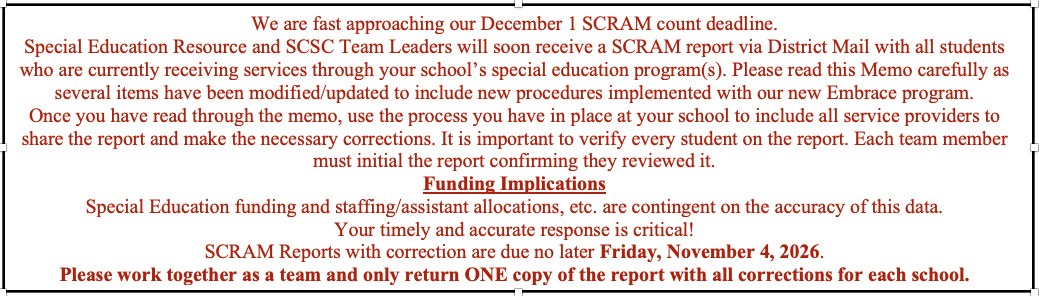
For the 2026-27 school year our procedure will be to Submit IEP (SCRAM) electronically through Embrace ONLY.
Please be sure to Submit IEP (SCRAM) immediately after holding an IEP meeting or Amendments.
NEW PROCESS FOR CHANGES/CORRECTIONS:
Mark/Add changes and/or corrections ON the SCRAM report, sign it, and return to Jen Warkentine at the District Office. Do not Submit IEP (SCRAM) through Embrace for corrections, unless it’s for a NEW student or an Initial Eval.
Jen will verify the changes on the report and contact you if further action needs to be taken.
*Preschool/CDC, please refer to Merrie Allen for procedures.*
If you have any questions. Please contact the Teacher Specialist assigned to your school or Jen Warkentine, jen.warkentine@jordandistrict.org.
Reminders:
- Please take note of the date that the report was printed (top right corner) and be aware that if IEP (SCRAM) documents were submitted after the print date, they will not appear on the report, but submitting multiple events is not necessary and slows the entry process.
- You must click Submit IEP button, to notify Jen Warkentine that there has been a change to the student's service and placement page, or the enrollment tracking.
This report reflects students served during the current school year. Carefully review the following:
Check mark (√ ) in front of the student’s name
Put a check mark in front of each student’s name, if ALL information is correct (the student is currently enrolled and scrammed at your school and receives the same special education/related services and minutes listed on the report). The SCRAM document must match the student’s active IEP.
- If a student being served in special education is not on the SCRAM report, please Submit an IEP (SCRAM) document with the entry date reflecting the date services began for this school year by the end of day Wednesday, November 04, 2026. If they are not on this printout, they are not on record as receiving services at your school.
- Cross out any students who are no longer receiving services at your school. Fill out the Enrollment tracking, and Submit an IEP (SCRAM) document. An IEP (SCRAM) can be submitted multiple times, so please be sure to click Submit IEP, to notify Jen Warkentine that there is a change to the enrollment. If an exit date is already listed in the SCRAM exit column on the report, nothing else needs to be done. Students who are released from services and are still active at your school will continue to appear on the report until the end of the year with the date they were exited from services.
- If you are not aware of a student that is listed on the printout (and the student has not been exited from services), you should follow-up with that student who is now in your building. Sometimes teams are not aware of students who have entered their school and should be receiving services. Please Submit an IEP (SCRAM), which either identifies the services the student will receive or which exits the student from services (procedures must be followed for terminating a student from services).
- If the IEP team has changed a student’s services, the changes must be documented on the Service and Placement page and a new IEP (SCRAM) document must be submitted by clicking Submit IEP. Remember that parents must be involved in any decision to amend IEP services and must receive a copy of the revised IEP.
- Students classified as Developmentally Delayed (DD) must be re-classified prior to their 9th birthday (regardless of the 3-year re-evaluation due date). Students who maintain a DD classification after their 9th birthday cannot be submitted for funding and will not be counted towards your schools’ numbers for staffing purposes.
Every section of the Service and Placement page must be filled out completely, and IEP (SCRAM) document submitted, or the student’s record cannot be submitted to the State for funding (this includes the student number, school name, eligibility, all services and amount of time per week, start/end dates, environment and regular percent codes, health services, etc.). If information is missing, the record will not be sent to the State for funding counts.
Please make sure to correctly fill out the Assessment Addendum form, with current year and next year participation of the Alternate Assessment by marking PAA in the appropriate boxes, if the student will be taking the DLM/alternative testing as per their IEP. Additionally, students classified as EBD, SLI or SLD should not be marked as DLM/alternative testing, as the state does not consider them to have significant cognitive disability. If they do qualify, they will need to be re-classified.
We recognize that the timeline for submitting this required information is short, but all data must be entered into Skyward by December 1 to make the submission deadline for the Utah State Office of Education.
If you have questions contact the Teacher Specialist assigned to your school or Jen Warkentine at (801)567-8207. Thank you for your conscientious efforts to complete this critical information. The deadline for returning SCRAM reports and all corrected information and/or new SCRAM information is listed below:
Friday, November 4, 2026