DATE:
September 03, 2026
TO:
All District Administrators and Employees
FROM:
John Larsen, Business Administrator
David Bowman, System & Security Manager, Information Systems
SUBJECT:
New Limit for Emails Sent to Large Groups
To help protect district email accounts from evolving security threats, the district is limiting emails sent to individual recipients to no more than 300 people at a time.
If you need to email more than 300 people, please consider using any of the following options:
a) an existing district-created mailing list counts as 1 email, even though it can send to large groups; or
b) JAM or JEM; or
c) ParentSquare; or
d) creating a user-created Google Group.
How to Create a Google Group
- Open Google Groups: Open the Google apps (waffle) menu
 and select “Groups.”
- Select Creat Group: On the Groups page, select “Create group” at the top left.
- Enter Group Information: Enter a “Group name.” Google will automatically use the group name to create the group email address. You can shorten or update the email address if you do not want to use the full group name. Add a description if needed, then select “Next.”
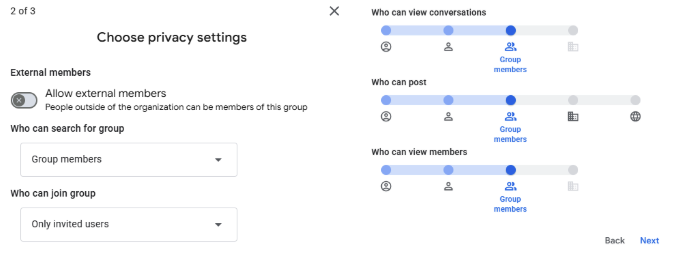
- Set Privacy & Access: Leave all privacy and access settings at their default values, then select “Next.” There is no need to change any of these settings.
Finish Setup
- Add Members & Managers: Add the people who should belong to the group in the “Group members.” You can add members by typing in their email address. Add “Group managers” and “Group owners” as needed. Managers and owners can add or remove members in the future.
- Welcome Message: After adding the group members, you can create an optional “welcome message” to send to new members when they are added or invited to the group.
- Choose Email Notifications: Leave the subscription setting as “Each email.” This ensures that everyone in the group receives an email for every message sent to the group.
- Create the Group: Select “Create group.” A confirmation will appear when the group is created.
- Sending to your New Email Group: Once your group has been created, you can send an email to it just like you would any other email address. In the “To” field, enter the group's email address. The first time you use the group, you may need to type the full email address. After that, Google should remember the address and suggest it from your contact list when you begin typing the group name.
Reminder
- If you have any questions about creating an email group, please contact the Help Desk at ext. 88737.